Automatic Restocking Fee
| Document Version | v.1 |
|---|---|
| Document Last Updated | 8/27/2025 |
| Software Version Documented | v10.2 |
Contents
Set Up Restocking Fee Part # 2
Default Restocking Fee - Site Level 4
Overview
In this document, the process of setting up a restocking fee to automatically be added to a return.
Assumptions
We will assume throughout this article that your business will charge a restocking fee for returns.
General Concepts
Set Up Restocking Fee Part #
-
Restocking Fees should be a Miscellaneous Charge Inventory Type
-
Upon selecting Misc. Charge in the Inventory Creation Wizard, the Restocking Fee checkbox will appear
- Not a discount.
-
Check the Restocking Fee Checkmark

-
Fill out the fields like a normal misc charge item,
-
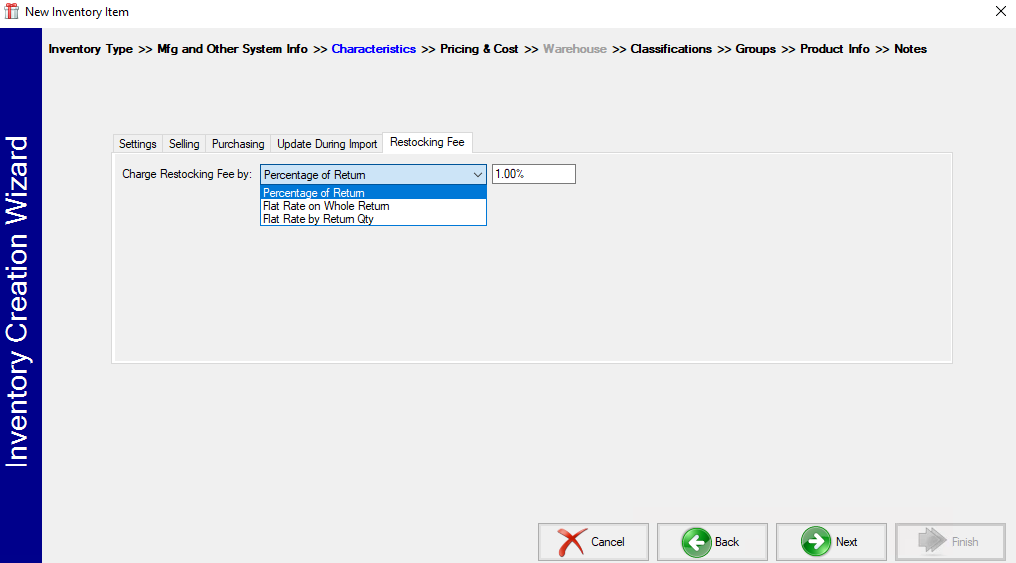
Once in the Characteristics tab, the Restocking Fee tab will be the only tab to fill out.

-
Options for basing the fee:
-
Percentage of Return - percentage
-
Flat Rate on Whole Return - dollar value
-
Flat Rate by Return Qty - dollar value
-
-
-
Once you choose and enter the fee basis, you can click Finish
- Classifications, Product Info, or Notes can still be added if desired.
Default Restocking Fee - Site Level
-
To add the restocking fee at the Site Level, open Admin, Administration, Sites Tab then the Selling tab.
-
Search for and select the restocking fee part number and click Update.

Default Restocking Fee - Warehouse Level (Multi Whse)
-
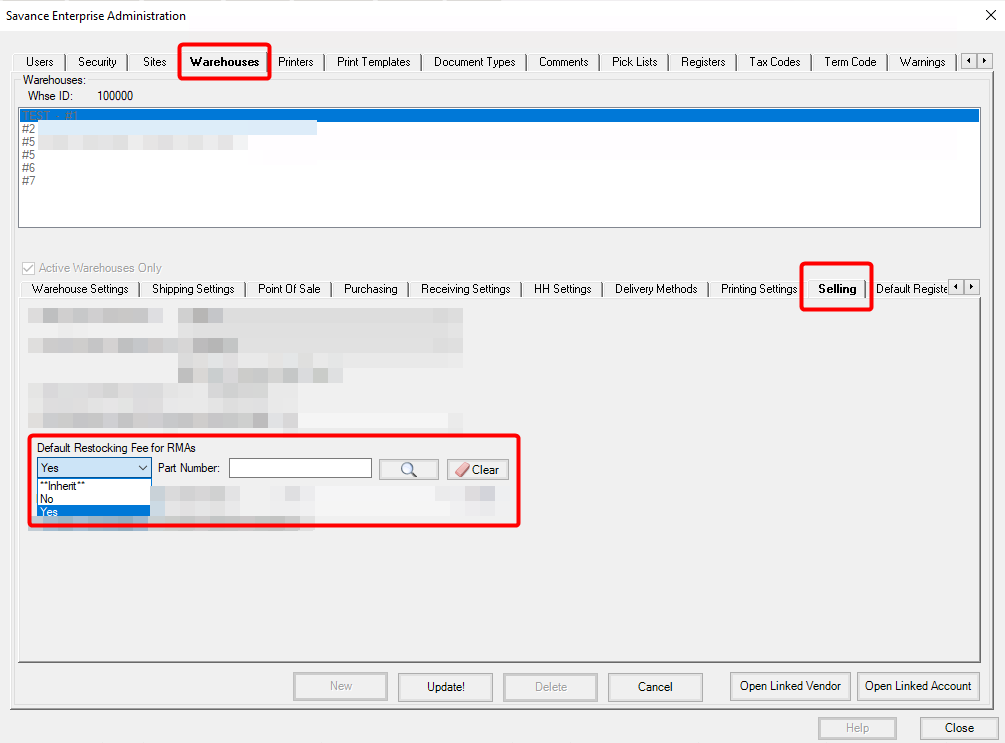
If you need to set the restocking fee by warehouse, or disable/enable for only certain warehouses, open Admin, Administrator, Warehouse Tab, Selling Tab.
-
By default, warehouses will show “Inherit”, meaning it will look at the restocking fee setting at the site level.
-
To disable the restocking fee for this warehouse, select No.
-
To enable the restocking fee for this warehouse, but for a different fee, select Yes, and choose a different Restocking Fee Part # (assuming there are multiple Restocking Fee Part #s).
Customer Return/RMA
-
Given that you start a new Customer Return or click Return Order/Item in an order
-
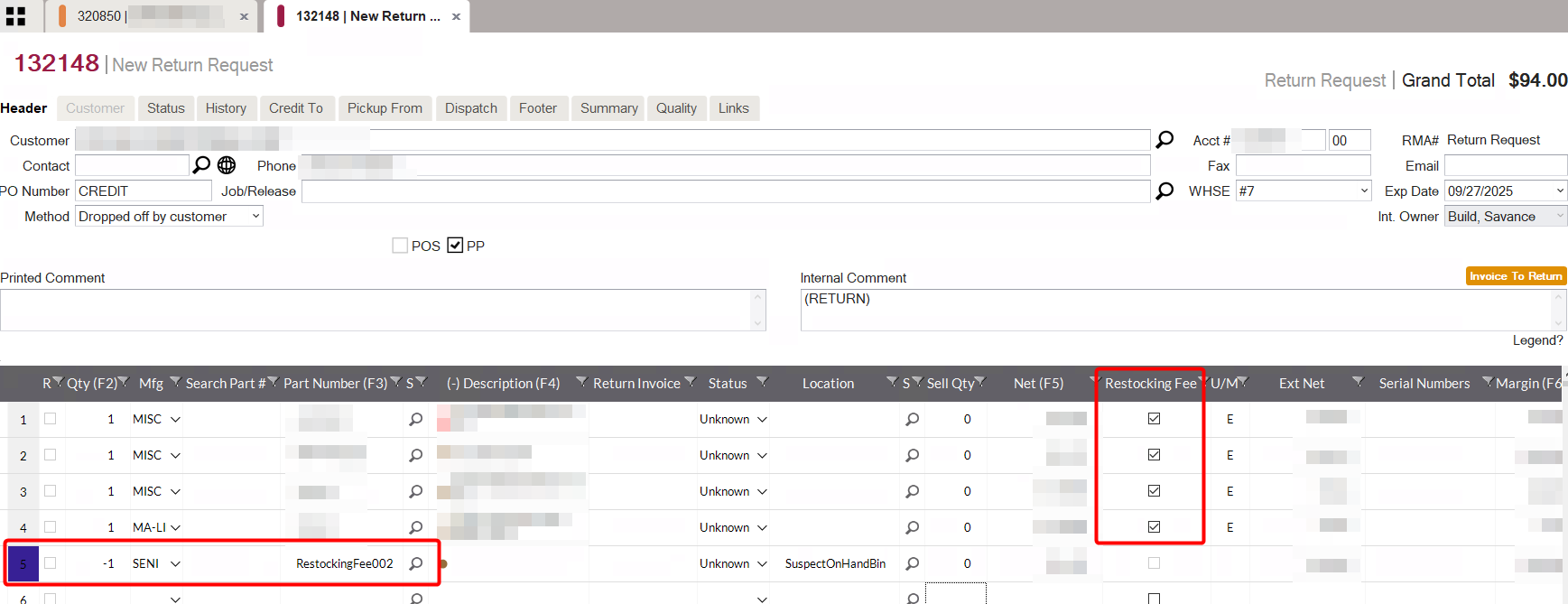
Once the first item is added to the Customer Return, the restocking fee will appear in the grid.
-
Depending on how the fee is set up, the dollar value will change as more items are added.
- It will not change if it is set up as a Flat Fee.
-
The restocking fee on RMAs will be a negative qty of -1 in order to reduce the refund/credit
-
Notice the Restocking Fee column in the grid.
-
If desired, uncheck individual items if you do not want to include them in the restocking fee.
-
Upon unchecking the last line, the restocking fee line item will be deleted.
Returns on an Order
-
Given that you enter a negative qty on a Quote/Order, and intended to include a return on an order
-
Once the first item is added to the Customer Return, the restocking fee will appear in the grid.
-
Depending on how the fee is set up, the dollar value will change as more items are added.
- It will not change if it is set up as a Flat Fee.
-
The restocking fee on RMAs will be a positive qty of 1 in order to reduce the refund/credit
- Since return lines will reduce the order grand total.
-
Notice the Restocking Fee column in the grid.

-
If desired, uncheck individual items if you do not want to include them in the restocking fee.
-
Upon unchecking the last line, the restocking fee line item will be deleted.
Restocking Fee Warning
-
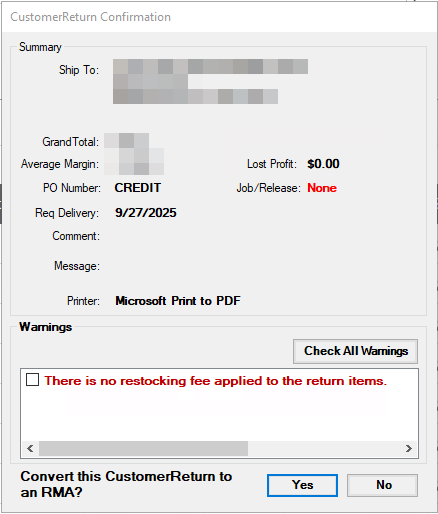
If you choose to NOT set up the Default Restocking Fee, but still wish to make sure it is added to returns manually, you can Enable and/or Require the Warning called “There is no restocking fee applied to the return items” in Admin.
-
Upon clicking Convert, if there is no restocking fee added, (or it is added but deleted), the warning will appear.